
Using Netflix while traveling in Korea
What can change after you land
Netflix licenses titles by territory, so a series visible at home may be absent in South Korea, while other titles may appear. This is not a reliable way to predict a current Korean catalog: availability changes, and even previously downloaded titles may become unavailable after crossing a border. Treat any online “Korean Netflix list” as a dated snapshot unless it is checked inside Netflix at the time of your trip.
Profile maturity settings can also affect results because Korea's classification system may differ from your home country. Before assuming a title has disappeared, check the profile's maturity and language settings.
Downloads: prepare, but verify
Download essential episodes or films before the flight only as a convenience—not a guarantee. Netflix states that downloads remain on the device used to create them, require you to stay signed in, expire after a period, and may have annual download limits. Some plans, titles and devices have additional restrictions. A downloaded title that is not licensed in Korea may not play there.
- Update the Netflix app and sign in while you still have stable internet.
- Open each intended download once and check its status.
- Save more than one option in case a title is unavailable after arrival.
- Keep enough device storage and bring a charger or power bank.
- Do not rely on streaming during a flight unless your airline explicitly provides suitable connectivity.
Subtitles and audio languages
Language choices depend on the title, location, profile settings and device. Streaming can show all languages available for a title on a supported device, while Netflix says downloads show the two most relevant languages. Choose preferred audio and subtitle languages in the profile before downloading. If a desired language is missing, check the title while streaming; Netflix notes that deleting a download may reveal more streaming language choices.
Older devices may not display some Korean, Japanese, Chinese, Thai or other scripts correctly. For an important viewing session, test the exact device and title rather than assuming every season or episode has identical language support.
Control mobile data before pressing play
Streaming can consume a travel data allowance quickly, and the amount varies with playback quality. Before leaving hotel Wi-Fi, open Netflix's app settings and decide whether playback and downloads may use cellular data. Do not assume a Korean eSIM advertised as “unlimited” always provides unrestricted high-speed video; the carrier's fair-use or tethering terms control that connection.
For a long train or bus ride, download on trusted Wi-Fi and verify playback before departure. Public Wi-Fi may require a browser sign-in page, disconnect while the screen is locked or be unsuitable for account passwords. Use your own mobile connection for a sensitive sign-in when the network name or login page looks unfamiliar.
Hotel and rental televisions
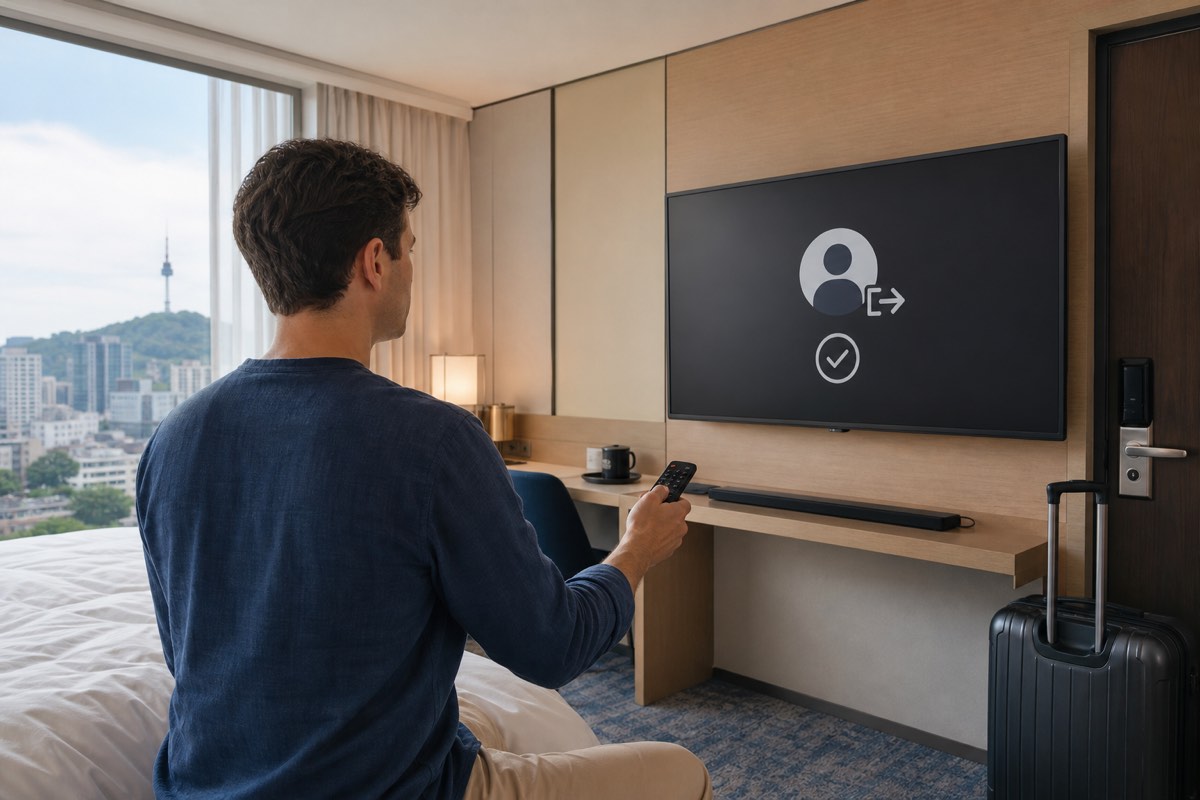
You can sign into a new TV, including at a hotel or holiday rental, but use the property's official Netflix app and sign out before checkout. Do not save a password in a browser you do not control. If the TV asks you to confirm temporary access, follow Netflix's on-screen account process rather than sharing verification codes with hotel staff or another guest.
Use a hotel TV without leaving the account behind
- Confirm that the app is installed by the television or accommodation system; avoid typing credentials into a copied web page.
- Prefer a QR or device-code flow shown by the official Netflix app when available, and verify the domain on your own phone.
- Do not give a password, payment detail or one-time security code to the front desk.
- Sign out through the TV menu before checkout. If you forget, use Netflix account management on your own device to sign out of the television or review device access.
Casting from a phone may be safer than entering a password, but only if the room's television supports an isolated guest connection. Check that you are controlling the correct screen and disconnect before leaving. Never change the television's network or install unofficial software just to stream.
Troubleshoot in the safest order
- Confirm the account: check that the correct profile is selected and that its maturity and language settings are appropriate.
- Confirm the connection: turn off an unintended VPN or proxy, then retry on a trusted network.
- Confirm the title: search again while streaming. A missing download, season or language can be a territorial availability issue rather than an app failure.
- Refresh locally: update the app, restart the device and re-download only after checking storage and expiry information.
- Use official support: follow the help link from the Netflix app or help.netflix.com. Do not call a phone number from a pop-up claiming the account is locked.
If only one hotel's television fails, continue on your own device instead of changing account security settings under pressure. If every device shows an unfamiliar login or payment request, stop and open Netflix independently rather than following the prompt.
A practical decision rule
If a program matters to your itinerary—perhaps you plan to visit a filming location—confirm the title and language inside your account after arrival. Use official tourism or venue sources for the real-world location's access hours; a streaming listing is not evidence that a set or private property is open to visitors.